Step 2 - Create keyboard navigation for the Home screen
In this step you create keyboard navigation to switch between the screens showing the recent and favorite destinations on the Home application screen. You also set focus to the button that opens the application screen which shows the sliders for adjusting the air conditioning temperature.
Set focus to elements in the Home screen
In this section you create keyboard navigation to set focus to the button which navigates to the AirCondition application screen and to navigate to the Recent and Favorite application screens when the user presses the ↑ (Up Arrow) key on their keyboard.
To set focus to elements in the Home screen:
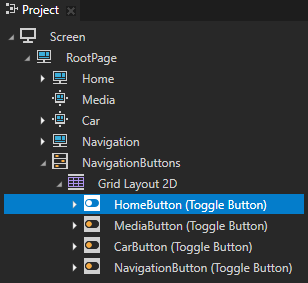
In the Project > RootPage > NavigationButtons select the HomeButton node, in the Properties add the Up Navigation Node property, and set it to #ACButton. You set the application to set focus to the ACButton node when the HomeButton has focus and the user presses the ↑ (Up Arrow) key on their keyboard. When the ACButton node has focus, the user can use the Enter key on their keyboard to navigate to the AirCondition screen.
In the Project > RootPage > Home > HomeControls select the ACButton node, in the Node Components right-click in the Triggers, and select Add Trigger > Keyboard > Key Down. The Key Down trigger is set off when the user presses down on their keyboard that you specify. You set which key sets off the trigger using trigger conditions in step 4 of this section.
In the Node Components for the Key Down trigger click Trigger Settings and in the Trigger Settings Editor click Add condition. The Trigger Condition Editor opens. Trigger conditions enable you to set which conditions must be met for the trigger to set off. Here you set the Key Down trigger to be set off when the user presses a specific key on the keyboard. You set which key sets off the trigger in the next step of this section.
In the Trigger Condition Editor set:
Value A
Value From to Message
Argument to Key The Key Down trigger intercepts the messages generated when a user presses down a key on their keyboard. The message contains the key code which Kanzi uses to set off the trigger.
Operator to =
Value B
Value From to Fixed
Fixed Value to 61 You set the trigger to be set off when the user presses the ↑ (Up Arrow) key on their keyboard.
In the Trigger Condition Editor and in the Trigger Settings Editor click Save.
With this condition when the user presses down the ↑ (Up Arrow) key, the Key Down trigger executes the actions you set in the trigger. For a list of the keyboard key codes used in Kanzi, see Keyboard input codes reference.
In the Node Components for the Key Down trigger you created add an Execute Script action, create a script, name it ACButtonUp, and in the Script Editor use this script:
// Get the Page node Favorite.
var favorite = node.lookupNode('#Favorite');

// The value of the Page.State property tells whether the Page or Page Host node is active:
// - If the value is 0, the node is inactive and invisible.
// - If the value is 1, the node is active and visible.
var favoriteActive = favorite.getProperty('Page.State');

var recent = node.lookupNode('#Recent');
var recentActive = recent.getProperty('Page.State');

// Set focus to the Page node Recent or Favorite
// based on which of those nodes is active
// and navigate to that Page.
if (favoriteActive == 1)
{
    favorite.trySetFocus();
    favorite.navigateToThisPage();
}
else if (recentActive == 1)
{
    recent.trySetFocus();
    recent.navigateToThisPage();
}
When you are done writing the script, in the Script Editor click Save. You use this script to set focus from the ACButton node to the Recent or Favorite node based on which of those pages is active when the user presses the ↑ (Up Arrow) key on their keyboard.
In the Project > RootPage > Home > HomeControls select the ACButton node, in the Node Components add to the Button: Click trigger an Execute Script action, create a script, name it CheckFocus, and in the Script Editor use this script:
// Get the Page node Home.
var homePage = node.lookupNode('#Home');

// The value of the Page.State property tells whether the Page or Page Host node is active:
// - If the value is 0, the node is inactive and invisible.
// - If the value is 1, the node is active and visible.
var homeActive = homePage.getProperty('Page.State');
var homeButton = node.lookupNode('#HomeButton');

var airConditionPage = node.lookupNode('#AirCondition');
var airConditionActive = airConditionPage.getProperty('Page.State');

// Check if the Page node Home and AirCondition are active and set focus to the AirCondition node.
if (homeActive == 1)
{
    if (airConditionActive == 1)
    {
        airConditionPage.trySetFocus();
    }
    else
    {
        homeButton.trySetFocus();
    }
}
When you are done writing the script, in the Script Editor click Save. You use the script to set focus to the Page node AirCondition when that page is active and when the user clicks the button which navigates to that page.
In the Preview when you press the ↑ (Up Arrow) key on the keyboard when the Home screen is active, you:
Set focus to the button which you use to navigate to the AirCondition application screen. The ACButton node uses a state manager which highlights the button when it has focus.
Set focus and navigate to the Recent or Favorite screen based on which of those screens is active. The Recent and Favorite nodes use state managers which highlight those pages when they have focus.
In the Preview when the ACButton is focused, press the Enter key on the keyboard to navigate to the AirCondition application screen.
Set a keyboard key to focus the navigation bar
In this section you add the functionality to move the focus from the content of the Home application screen to the navigation bar.
To use keyboard keys to set focus to the navigation bar:
In the Project > RootPage > Home > HomeControls select the ACButton node, in the Properties add the Down Navigation Node property, and set it to #HomeButton. The application sets focus from the ACButton node to the HomeButton node on the navigation bar when the user presses the ↓ (Down Arrow) key on their keyboard.
Repeat the previous step for the Home > Recent and Favorite nodes but for those nodes set the Down Navigation Node property to #ACButton.
In the Preview when you press the ↓ (Down Arrow) key on the keyboard when the Recent or Favorite screen has focus, you:
Set focus to the button which you use to navigate to the AirCondition application screen.
Set focus to the navigation bar. You can use the → (Right Arrow) and ← (Left Arrow) keyboard keys to navigate to other application screens on the navigation bar.
Create keyboard navigation between the Recent and Favorite screens
In this section you set the application to navigate between the Recent and Favorite screens when the user presses a key on the keyboard.
To create keyboard navigation between the Recent and Favorite screens:
In the Project > RootPage > Home select the Recent node, in the Properties add the Right Navigation Node property, and set it to #Favorite. You set the application to set the focus from the Recent page to the Favorite page when the user presses the → (Right Arrow) key on their keyboard.
In the Project > RootPage > Home select the Recent node and in the Node Components add a Key Down trigger. You use this trigger to navigate from the Recent application screen to the Favorite application screen which you set in the Right Navigation Node property in the previous step.
In the Trigger Settings Editor for the trigger you created in the previous step add a condition:
Value A
Value From to Message
Argument to Key
Operator to =
Value B
Value From to Fixed
Fixed Value to 64
You set the trigger to be set off when the user presses the → (Right Arrow) key.
Add to the Key Down trigger the actions you use to set focus and navigate to the Favorite page:
An Execute Script action, create a script, name it FocusRight, and in the Script Editor use this script:
// Set focus to the node defined in the Right Navigation Node property.
tryMoveActiveFocusRight();
When you are done writing the script, in the Script Editor click Save. You use the script to set focus to the Favorite node.
A Navigate to Page action, set the Item to #Favorite, and click Save. You use the action to navigate to the Favorite application screen.
In the Project select the Home > Favorite node, in the Properties add the Left Navigation Node property, and set it to #Recent. You set the application to set the focus from the Favorite page to the Recent page when the user presses the ← (Left Arrow) key on their keyboard.
In the Project select the Home > Favorite node and in the Node Components add a Key Down trigger. You use this trigger to navigate from the Favorite application screen to the Recent application screen which you set in the Left Navigation Node property in the previous step.
In the Trigger Settings Editor for the trigger you created in the previous step add a condition:
Value A
Value From to Message
Argument to Key
Operator to =
Value B
Value From to Fixed
Fixed Value to 63
You set the trigger to be set off when the user presses the ← (Left Arrow) key.
Add to the Key Down trigger the actions you use to set focus and navigate to the Recent page:
An Execute Script action, create a script, name it FocusLeft, and in the Script Editor use this script:
// Set focus to the node defined in the Left Navigation Node property.
tryMoveActiveFocusLeft();
When you are done writing the script, in the Script Editor click Save. You use the script to set focus to the Recent node.
A Navigate to Page action, set the Item to #Recent, and click Save. You use the action to navigate to the Recent application screen.
In the Preview when the Recent or Favorite application screen has focus, use the → (Right Arrow) and ← (Left Arrow) keyboard keys to navigate between those screens.
Set a key to close the air conditioning settings
In this section you set the AirCondition screen to close when the user presses a key on their keyboard.
To set a key to close the air conditioning settings:
In the Project > RootPage > Home > AirCondition select the Driver node and in the Node Components in the Triggers add a Key Down trigger.
In the Trigger Settings for the trigger you created in the previous step click Add condition and in the Trigger Condition Editor set:
Value A
Value From to Message
Argument to Key
Operator to =
Value B
Value From to Fixed
Fixed Value to 19
In the Trigger Condition Editor and the Trigger Settings Editor windows click Save You set the application to close the AirCondition window when the user presses the E key.
Add to the trigger the actions you need to close the AirCondition application screen:
A Navigate to Page action and set the Item to #Recent. You set the application to navigate to the Recent node in the Home node.
An Execute Script action and in the Execute Script window use the CheckFocus.js script. You use the script to set focus to the navigation bar when the user closes the AirCondition application screen.
In the Project > RootPage > Home > AirCondition select the Driver node, in the Node Components right-click the Key Down trigger, and select Copy Trigger. You use the same trigger for the Passenger node and the Slider 2D nodes to close the AirCondition application screen when the user presses the E key.
In the Project > RootPage > Home > AirCondition select the Passenger node, in the Node Components right-click, and select Paste Trigger.
Repeat the previous step for the Home > AirCondition > Driver > Slider 2D and Home > AirCondition > Passenger > Slider 2D nodes to paste the Key Down trigger to those nodes.
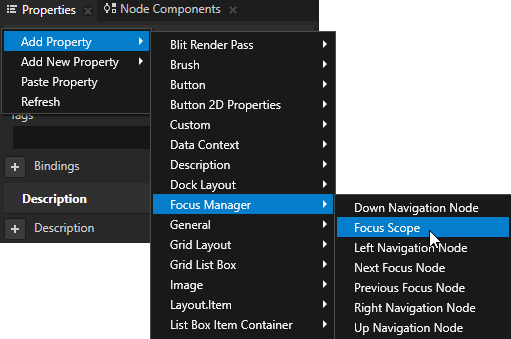
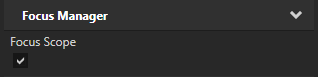
In the Project > RootPage > Home select the AirCondition node and in the Properties add and enable the Focus Scope property. You use the Focus Scope property to forward the focus from the Page Host node AirCondition to the Driver and Passenger nodes to navigate between the Driver and Passenger application screens. When the focus is on one of the child nodes of the AirCondition node, the user can use the E key to close the AirCondition screen.
In the Project > RootPage > Home > AirCondition select the Driver node and in the Properties add and enable the Logical Focus property. You set the Driver node to receive focus when you set focus to the Page Host node AirCondition.
In the Preview in the AirCondition application screen press the E key on the keyboard to close that screen.
Use these keyboard keys to navigate the application:
← (Left Arrow) and → (Right Arrow) keys
Navigate between the Home, Media, Car, and Navigation application screens.
When the Recent or Favorite application screen has focus, navigate between those application screens.
↑ (Up Arrow) and ↓ (Down Arrow) keys
Set focus to the button which opens the AirCondition application screen.
Set focus to the Recent or Favorite application screen based on which of those application screens is active.
Enter key navigates to the AirCondition application screen when the ACButton node has focus.